Cloudzy
Cloudzy ships RomM as a one-click image in its VPS marketplace, so a fresh server comes up with the container, its database, and a reverse proxy already wired together. Cloudzy builds and maintains the image, and the app itself is the same rommapp/romm image documented everywhere else in these docs.

What it deploys
The image installs Ubuntu Server 24.04 LTS and a Docker Compose stack rooted at /root/romm:
- The RomM app and a MariaDB database, as two containers.
- Caddy, as the reverse proxy. It runs on the host under systemd rather than in Docker, and reads
/etc/caddy/Caddyfile.
The library, assets, and config live in directories under /root/romm, while the database persists in the romm_mysql_data volume.
Prerequisites
- A Cloudzy VPS plan with at least 2 GB of RAM, which is the image's stated minimum. Your library shares the server's disk, so pick a plan whose storage fits your collection.
Install
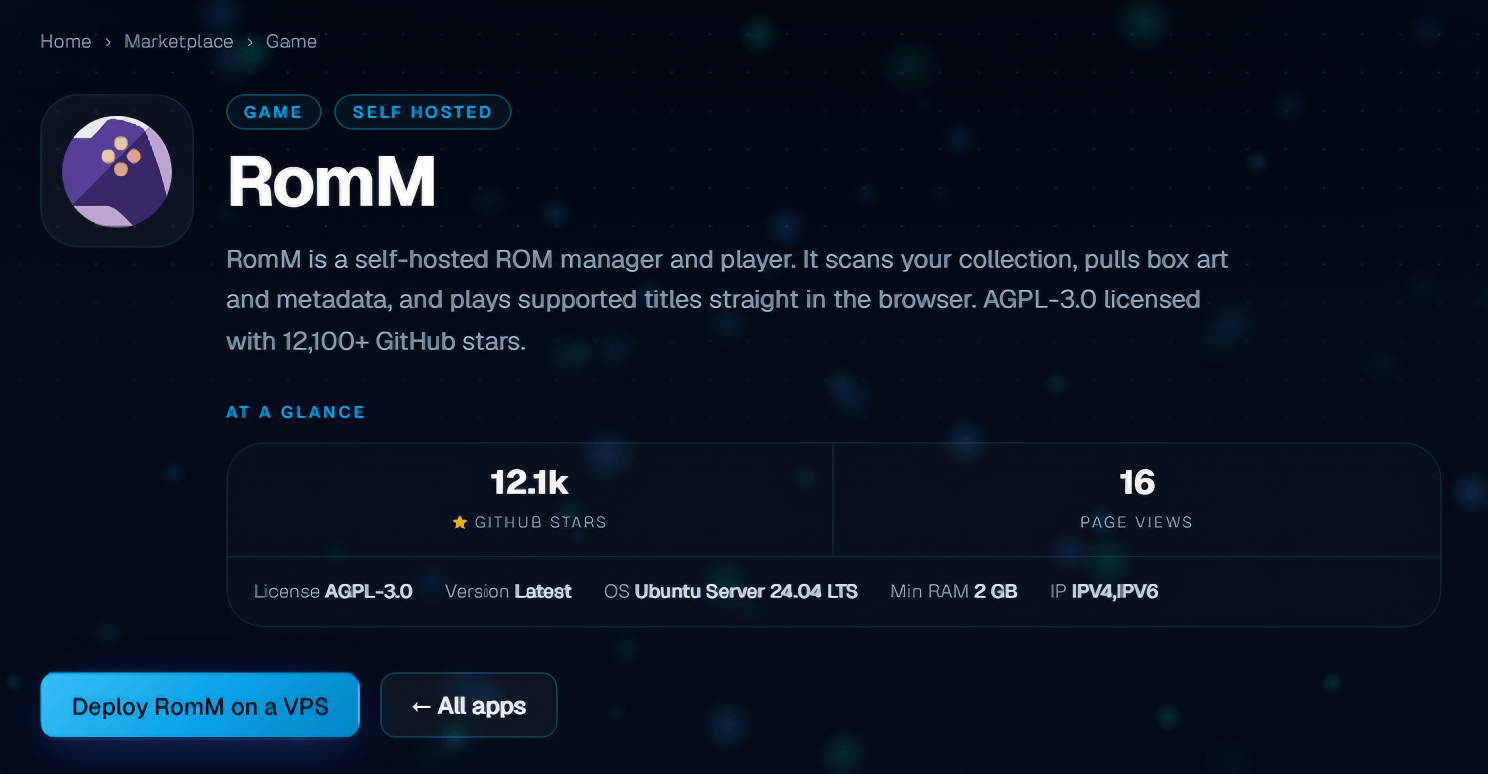
The button above opens a cart with the RomM image and a 2 GB plan preselected. The other way in is the marketplace listing, where Deploy RomM on a VPS leads to the same cart.
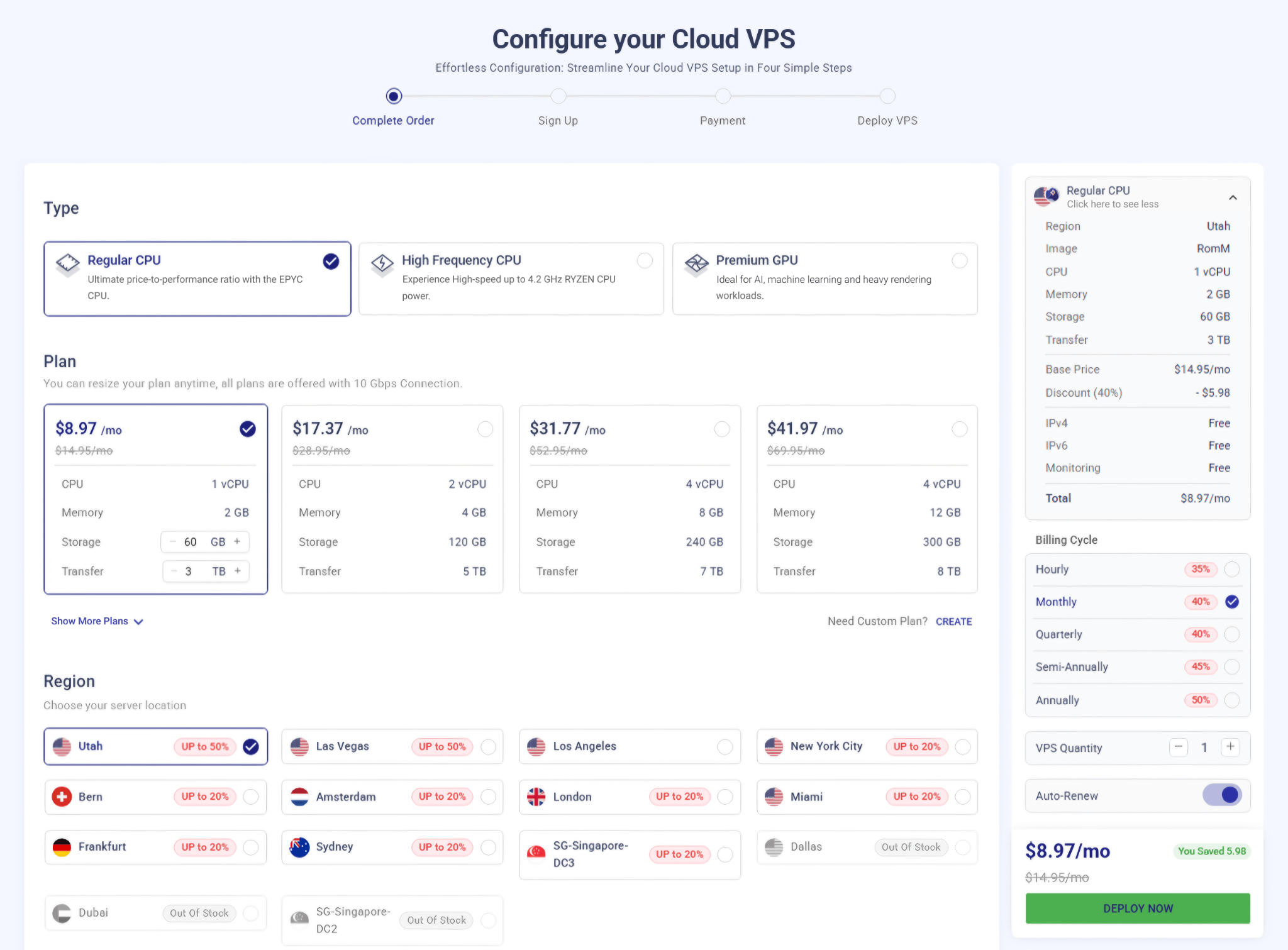
The order summary on the right lists RomM as the image. Pick a plan with at least 2 GB of RAM and a region close to you, then click Deploy Now, signing in or creating a Cloudzy account when prompted.
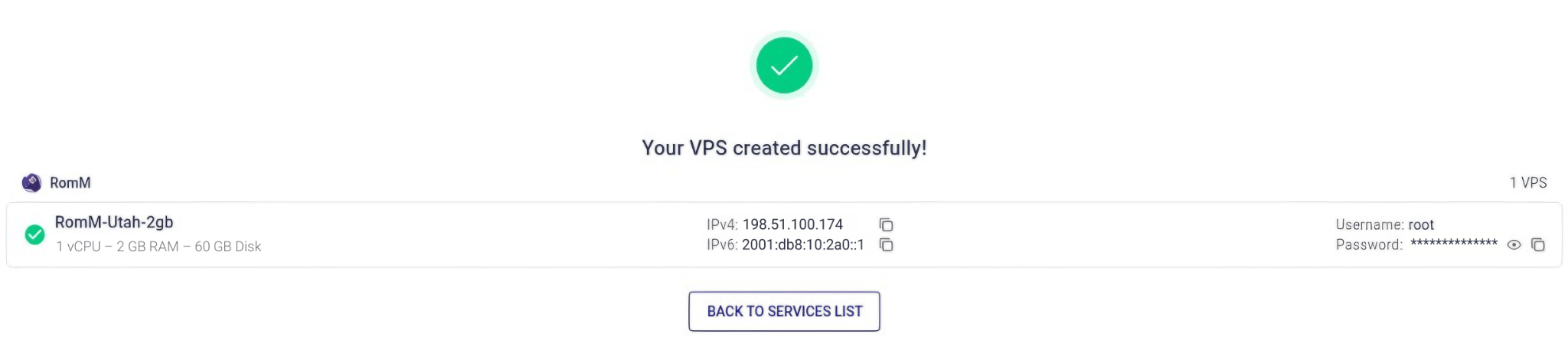
Cloudzy then provisions the VPS and brings the stack up, which takes about a minute.

When it finishes, the page lists the server's IP addresses and its root credentials. Save them somewhere safe, since you'll need them to open RomM and to connect over SSH.
Once it's ready, open http://<server-ip>. The first start takes a few minutes while the containers initialise, after which RomM hands you to the setup wizard, where the first account you create becomes the administrator.
Managing the stack
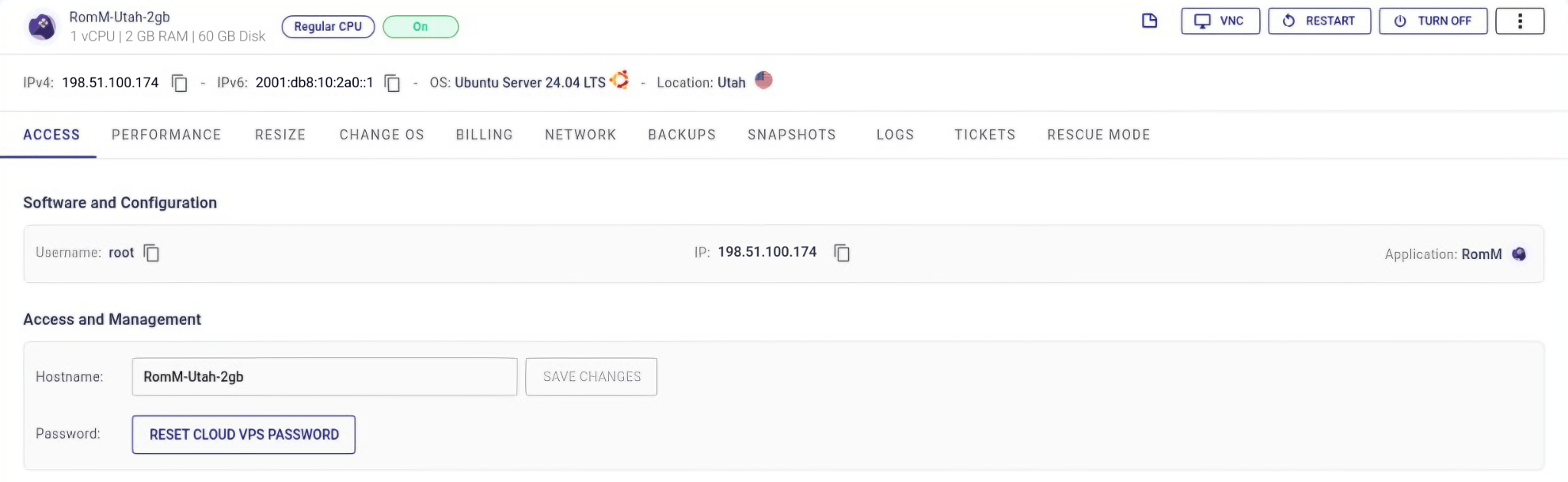
Everything after install happens over SSH, using the server's IP and its root credentials. The server's Access tab in the Cloudzy dashboard always shows the IP and username, and Reset Cloud VPS Password there sets a new root password if you lose the original.
The compose file lives at /root/romm/docker-compose.yml, so the usual commands work from that directory:
cd /root/romm
docker compose logs -f   # follow logs
docker compose restart   # restart the stack
docker compose down      # stop the stack
docker compose up -d     # start the stack, and apply config changes
Configuration
/root/romm/.env holds the environment variables the compose file reads, and docker compose up -d applies a change by recreating the containers.
The image enables Hasheous, which matches games by file hash without an API key, so scans work out of the box. Adding IGDB, SteamGridDB, or Retroachievements credentials to the same file gives you better artwork and richer metadata (see Metadata Providers).
Everything in the compose file is the standard configuration described in Quick Start and the Environment Variables reference, so you can edit it directly to add volumes, change the image tag, or set variables the template doesn't ship.
Adding a domain and HTTPS
Point your domain at the server's IP, then set the public URL in /root/romm/.env so generated links (QR codes, invite links, OIDC redirects) use it instead of the IP:
The variable is ROMM_BASE_URL
Cloudzy's marketplace page writes this line as BASE_URL, but the container reads ROMM_BASE_URL. Setting the shorter name leaves the public URL at its default.
Recreate the containers to pick up the change:
Then swap the site address at the top of /etc/caddy/Caddyfile for your domain, leaving everything inside the block alone:
# /etc/caddy/Caddyfile
romm.example.com {  # was http://<server-ip>
    # compression, headers, and the reverse proxy to RomM, all unchanged
}
Reload the proxy with systemctl reload caddy, and Caddy obtains a Let's Encrypt certificate on the next request and renews it from then on. HTTPS is worth doing early, since OIDC logins and PWA installs both require it (see Reverse Proxy).
Adding ROMs
ROMs go in /root/romm/library/roms and BIOS files in /root/romm/library/bios, both of which the compose file mounts into the container. Copy files to the host over SFTP or SSH:
Platform folder names inside roms/ have to match the expected naming (see Folder Structure). Once the files land, run a scan (see Your First Scan).
Getting help
For problems with the VPS or the marketplace image, open a ticket from your Cloudzy dashboard or contact Cloudzy support, since they maintain the catalog entry. For issues with the app itself, try the RomM Discord or:
- Scanning Troubleshooting for matching and ingest problems
- Authentication Troubleshooting for login issues