Feed Clients
RomM exposes URL feeds for several homebrew installers and frontends. Point the client at a feed URL and it browses (and installs from) your library over a network. This page collects setup instructions for each supported client.
| Client | Target hardware | File format |
|---|---|---|
| Tinfoil | Nintendo Switch (homebrew) | .nsp/.xci |
| pkgj | PS Vita/PSP | .pkg |
| pkgi | PS3/PS Vita/PSP | .pkg |
| fpkgi | PS4/PS5 (CFW) | .pkg |
| Kekatsu | Nintendo DS | .nds |
Authentication applies to every feed
Two endpoints are involved on every install: the feed (the listing the client fetches) and the download endpoint (the per-ROM URLs the feed points at). Both default to requiring basic auth.
- pkgj and fpkgi send basic auth on both feed and download requests, so they work with the default
DISABLE_DOWNLOAD_ENDPOINT_AUTH=false. - Tinfoil authenticates the feed fetch but does not propagate credentials to the download URLs returned in the feed. So the download endpoint has to be opened with
DISABLE_DOWNLOAD_ENDPOINT_AUTH=true. Only enable this when RomM isn't directly exposed to the public internet (see Download-endpoint auth bypass for the full security discussion).
Tinfoil

Tinfoil is Nintendo Switch homebrew for installing software from custom feed URLs. Point it at the Tinfoil feed endpoint, and your Switch library becomes installable from the Switch itself over Wi-Fi.
Prerequisites
DISABLE_DOWNLOAD_ENDPOINT_AUTH=trueon your instance, with a container restart applied. Tinfoil sends basic auth to the feed but not to the per-ROM download URLs the feed returns, so the download endpoint has to be open.- Valid credentials for the user whose library you want exposed.
- Tinfoil installed on the Switch by following Tinfoil's own docs.
- A Switch that can reach the server over the network. Remote reachability requires reverse proxy + cert that the Switch accepts.
Feed URL
Tinfoil sends your username/password as basic auth to fetch this feed. The download URLs it returns are the part that needs DISABLE_DOWNLOAD_ENDPOINT_AUTH=true to be reachable.
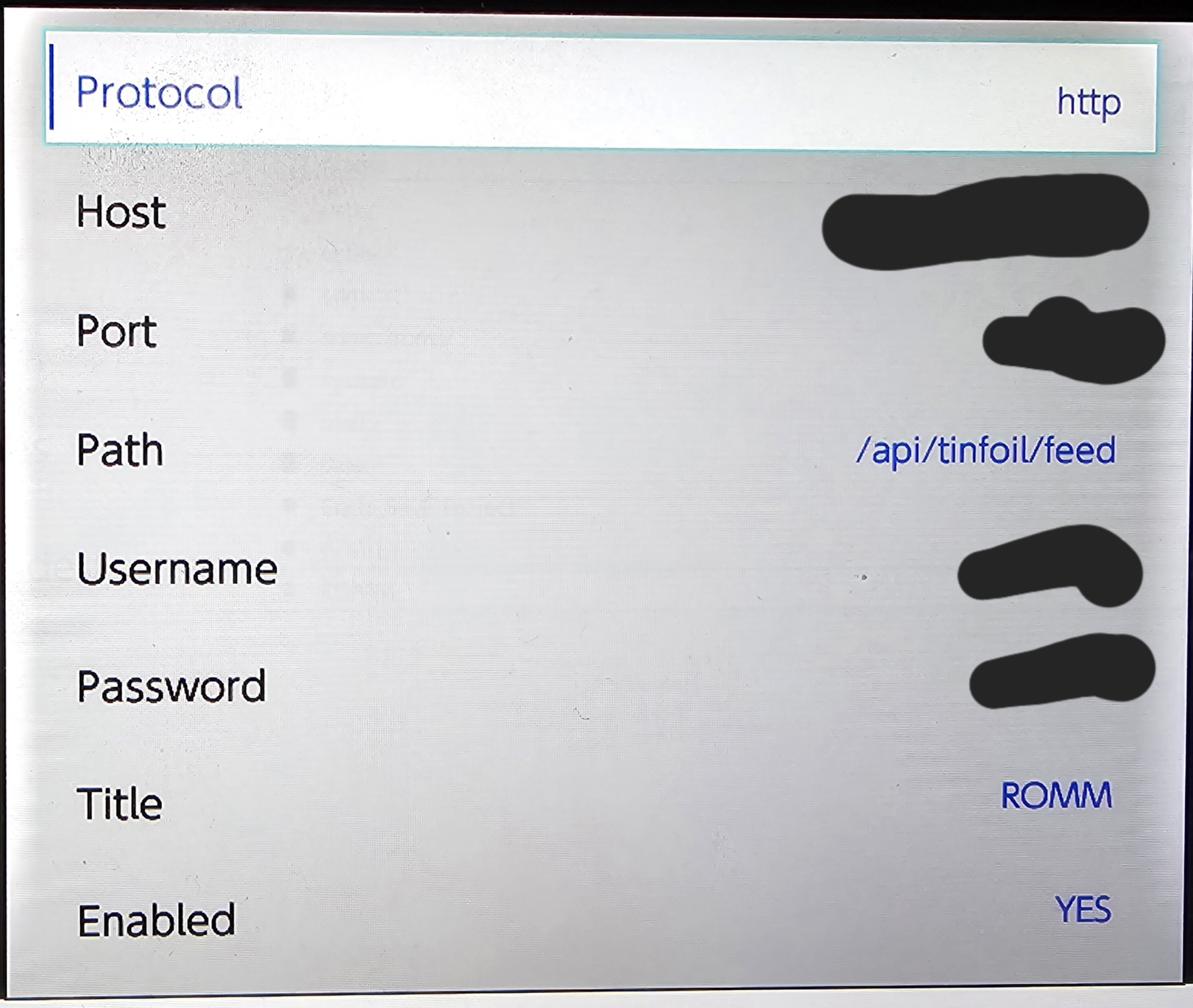
Configuration
- Launch Tinfoil on the Switch → File Browser.
- Scroll to the file-server list → press
-(minus) to add a new one. - Enter:
- Protocol:
httporhttps(depending on your reverse-proxy setup) - Host: hostname or IP
- Port: usually 80 or 443
- Path:
/api/feeds/tinfoil - Username: your username
- Password: your password
- Title: anything (e.g.
My Switch) - Enabled: yes
- Protocol:
- Press
Xto save. - Restart Tinfoil to trigger TitleID scanning and feed parsing.
On reopen, you should see a custom message of the day: RomM Switch Library. If you do, it's working!
Using it
- New Games tab in Tinfoil: browseable list of your Switch ROMs
- File Browser: pick a file to install directly.
Tinfoil downloads the file (.nsp, .xci, .nsz, .xcz, and .nro are served), installs to eMMC or SD, and cleans up, just like any homebrew installer.
Filename requirements
Tinfoil needs Switch title IDs in the filenames to parse and categorise games:
The bracketed [0100000000010000] is the title ID. Without it, Tinfoil shows the file but doesn't parse it into the New Games tab or match against Switch metadata.

Finding title IDs
- No-Intro lists them per title
- tinfoildb.com and similar databases are searchable
- Pre-organised ROM sets ship with title IDs in filenames already
Troubleshooting
- "can't get list: list is empty". Either your library has no
.nsp/.xcifiles that Tinfoil recognises, or filenames lack title IDs. - Tinfoil connects but nothing in New Games. Title IDs missing from filenames.
- Tinfoil can't connect at all. LAN reachability issue, or wrong port in the feed setup. Try
http://<ip>:<port>/api/feeds/tinfoilin a browser to view the raw JSON. - Downloads fail with 401.
DISABLE_DOWNLOAD_ENDPOINT_AUTH=trueisn't set, or you forgot to restart the container after setting it.
pkgj
pkgj is PS Vita homebrew for installing .pkg-format games and DLC. Default config points at well-known community URLs but you can point it at feed endpoints instead and install from your library over Wi-Fi.
Prerequisites
- PS Vita with pkgj installed
- A way to edit files on the Vita (VitaShell works well)
- Reachable from the Vita (HTTP or HTTPS both work)
- Your games stored as
.pkgfiles (it won't work with.isoor other formats)
Feed URLs
| Content | URL |
|---|---|
| PS Vita games | {romm_url}/api/feeds/pkgj/psvita/games |
| PS Vita DLCs | {romm_url}/api/feeds/pkgj/psvita/dlc |
| PSP games | {romm_url}/api/feeds/pkgj/psp/games |
| PSP DLCs | {romm_url}/api/feeds/pkgj/psp/dlc |
| PSX games | {romm_url}/api/feeds/pkgj/psx/games |
Configuring pkgj
- Connect the Vita to your PC over USB with VitaShell running.
- Open
/pkgj/config.txton the Vita in a text editor. - Append lines for each feed you have content for:
url_games       {romm_url}/api/feeds/pkgj/psvita/games
url_dlcs        {romm_url}/api/feeds/pkgj/psvita/dlc
url_psp_games   {romm_url}/api/feeds/pkgj/psp/games
url_psp_dlcs    {romm_url}/api/feeds/pkgj/psp/dlc
url_psx_games   {romm_url}/api/feeds/pkgj/psx/games
Replace {romm_url} with your actual RomM URL (e.g. https://demo.romm.app).
- Save and disconnect from VitaShell.
- On the Vita: open pkgj → press
△to open the menu → Refresh.
Using pkgj
Once configured, pkgj shows your PS Vita/PSP library. Select a title and install!
File format requirements
Listed in pkgj feeds: .pkg files plus compressed archives (.zip, .7z, etc.) for game entries. DLC stays .pkg-only. If your Vita or PSP games are in .iso, .chd, or other uncompressed formats, they won't appear in pkgj. If you have non-.pkg files you want on the Vita, you'll need to convert them or use a different workflow (FTP through VitaShell, for example).
Authentication notes
Unlike Tinfoil, pkgj sends basic auth headers natively, so you don't have to turn off download auth to use it. Some users prefer disabling auth for a smoother first-time flow, and either path works.
pkgi
pkgi is the older .pkg installer family, predating pkgj.
Feed URLs
Where:
{platform}must be one ofps3,psvita,psp{content_type}for PS3/PSP must be one ofgame,dlc,demo,update,patch- Vita also accepts
hack,manual,mod,translation,prototype, andcheat
- Vita also accepts
Examples:
{romm_url}/api/feeds/pkgi/ps3/game
{romm_url}/api/feeds/pkgi/ps3/dlc
{romm_url}/api/feeds/pkgi/psp/game
Each URL returns a CSV in the format the matching pkgi client expects. The schema differs slightly between PS3/PSP and Vita.
Configuration
Each pkgi fork has its own config.txt location and URL-key names. Consult the client's README. The pattern is the same regardless: drop a URL entry pointing at the feed for each content type you want to browse, then refresh inside the client.
For Vita and PSP, the layout is similar to pkgj's config above. Substitute the pkgi feed URLs for the pkgj ones.
File format requirements
.pkgfiles only!- PS3 and PSP: if a
.raplicense file sits as a sibling in the same ROM, its hash and download URL are included in the feed automatically. Without a matching.rap, the entry still appears but pkgi can't install it. - PS Vita: the
zRIFcolumn is left blank in the feed. You need to supply license keys separately (e.g. via NoNpDrm) for installs to succeed.
Authentication notes
pkgi sends basic auth in its URL config like pkgj does. Either embed credentials in the URL or use DISABLE_DOWNLOAD_ENDPOINT_AUTH=true server-side.
Troubleshooting
- HTTP 400 on the feed URL.
{content_type}isn't valid for the platform. PS3 and PSP only acceptgame,dlc,demo,update,patch. Vita is more permissive (see above). - Feed is empty. No
.pkgfiles on the platform match the requested content type. Game listings also accept compressed archives, but only as top-level files within a ROM. - Install fails on the client. PS3/PSP need a matching
.rapfile in the same ROM (picked up automatically). Vita additionally needs a zRIF. The feed leaves it blank, so supply it through your client config.
fpkgi
fpkgi is PS4/PS5 homebrew for installing .pkg packages from custom URL feeds. fpkgi-compatible feeds are exposed for its PS4 and PS5 libraries.
Prerequisites
- Games stored as
.pkgfiles! - PS4 or PS5 with fpkgi installed (requires CFW/jailbreak, and setup is out of scope here)
- Reachable from the console over Wi-Fi.
Feed URL
Where {platform_slug} is ps4 or ps5.
Example:
The feed returns JSON in the fpkgi-expected schema: titles, title IDs, content types, and download URLs back to the server.
Configuring fpkgi
Exact steps depend on the fpkgi version but the gist is:
- Put the feed URL in fpkgi's config (check fpkgi's docs).
- Restart fpkgi.
- The library appears in fpkgi's browse view.
Consult fpkgi's README for the current config-file location and format.
Authentication notes
The /api/feeds/fpkgi/ endpoints support basic auth the same way /api/feeds/pkgi/ does. Either set basic-auth credentials in fpkgi's config (if it supports them) or use DISABLE_DOWNLOAD_ENDPOINT_AUTH=true on the server.
File format
fpkgi only installs .pkg (PS4 .pkg specifically, not .iso or compressed), but the feed doesn't filter by extension. Every ROM on the ps4/ps5 platform appears in the listing, so non-.pkg entries show up too and will fail at install time. Curate the platform folder if you want to keep them out of the listing.
Troubleshooting
- Feed is empty. No ROMs on the
ps4/ps5platform. Check your library. - Downloads fail with 401. Auth config mismatch, see Authentication above.
- Downloads succeed but install fails.
.pkgis for a different firmware version.
Kekatsu
Kekatsu is a Nintendo DS homebrew for loading games from a custom URL feed.
Prerequisites
- DS games in
.ndsformat! - A Nintendo DS with Kekatsu installed (requires a flashcart or homebrew launcher)
- Reachable from the DS over Wi-Fi (the DS's Wi-Fi is WEP/old WPA only)
Feed URL
For standard DS content, the platform slug is nds:
Configuring Kekatsu
Exact config steps depend on your Kekatsu build but the shared concept is "point the app at this URL and it fetches the manifest". Consult Kekatsu's own docs for the current config-file location.
File format
Kekatsu only loads .nds, but the feed doesn't filter by extension. Every ROM on the requested platform appears in the listing, so DSi Ware/iQue/other formats show up too and won't load when selected. Curate the platform folder if you want to keep them out.
Authentication notes
Kekatsu can send basic auth, either configure it on the DS side or set DISABLE_DOWNLOAD_ENDPOINT_AUTH=true in the environment variables.
Why the legacy-Wi-Fi hassle
The DS's original Wi-Fi hardware supports WEP and an older WPA variant only, while modern home routers usually don't. Workarounds:
- Dedicated DS-friendly SSID. Many routers allow per-SSID security, so add a WEP one just for the DS.
- Travel router in bridge mode. A cheap travel router configured for WEP uplinks to your main (secure) network.
- Use a DSi, 3DS, or homebrew replacement driver. These support secure connection standards.
If none of this is appealing, Kekatsu-over-LAN isn't going to work. Fall back to sideloading via flashcart or similar.
Troubleshooting
- Feed is empty. No ROMs on the
ndsplatform - DS can't see the network. See the legacy-Wi-Fi section above.
- Downloads fail. Either network timeout (LAN latency over WEP is rough) or disk space. Retry one game at a time.
See also
- Authentication → Download-endpoint auth bypass: the
DISABLE_DOWNLOAD_ENDPOINT_AUTHcaveat