OIDC with PocketID
PocketID is a minimalist OIDC provider that only supports passkey authentication, with no passwords. Before starting, read the OIDC Setup overview, as it covers the RomM-side settings common to every provider.
1. Prerequisites
PocketID installed, running, and your admin passkey already registered via their PocketID setup guide.
2. Add the client
In PocketID admin:
- Application Configuration: make sure Emails Verified is ticked, because RomM requires verified emails.
- Go to OIDC Client → Add OIDC Client.
- Fill in:
- Name:
RomM - Callback URLs:
https://demo.romm.app/api/oauth/openid
- Name:
- Save. Stay on this page, because the client secret is displayed only once.
- Copy both the Client ID and Client Secret now.
3. Configure RomM
environment:
    - OIDC_ENABLED=true
    - OIDC_PROVIDER=pocket-id
    - OIDC_CLIENT_ID=<from PocketID>
    - OIDC_CLIENT_SECRET=<from PocketID>
    - OIDC_REDIRECT_URI=https://demo.romm.app/api/oauth/openid
    - OIDC_SERVER_APPLICATION_URL=https://id.example.com
    - ROMM_BASE_URL=https://demo.romm.app
OIDC_SERVER_APPLICATION_URL is the root URL of your PocketID instance.
4. Set your email
In RomM's Profile, set your email to exactly the same address PocketID has for you.
5. Test
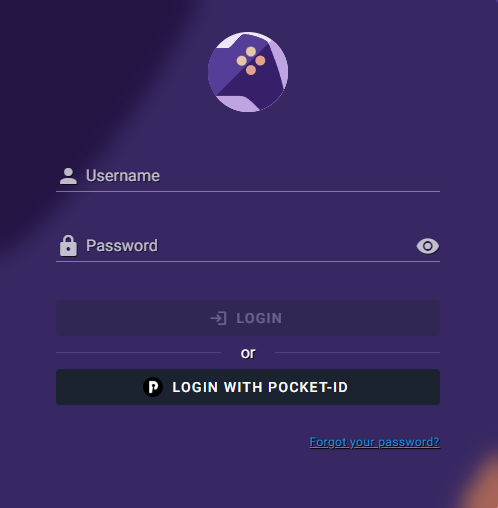
Restart, navigate to /login and click the Login with OIDC button. RomM redirects you to PocketID, and after you authenticate it sends you back signed in.
If it doesn't work, head to Authentication Troubleshooting.