TrueNAS
This guide covers TrueNAS SCALE. TrueNAS CORE isn't supported because its FreeBSD jail system doesn't run Docker images.
Prerequisites
- A running TrueNAS SCALE installation
- Your library arranged in the expected folder structure
- A TrueNAS user/group with a UID/GID that can own the dataset paths you'll mount in
Option A: App Catalog (recommended)
- Open the RomM app
Apps (left nav) → Discover Apps → search RomM → Install.
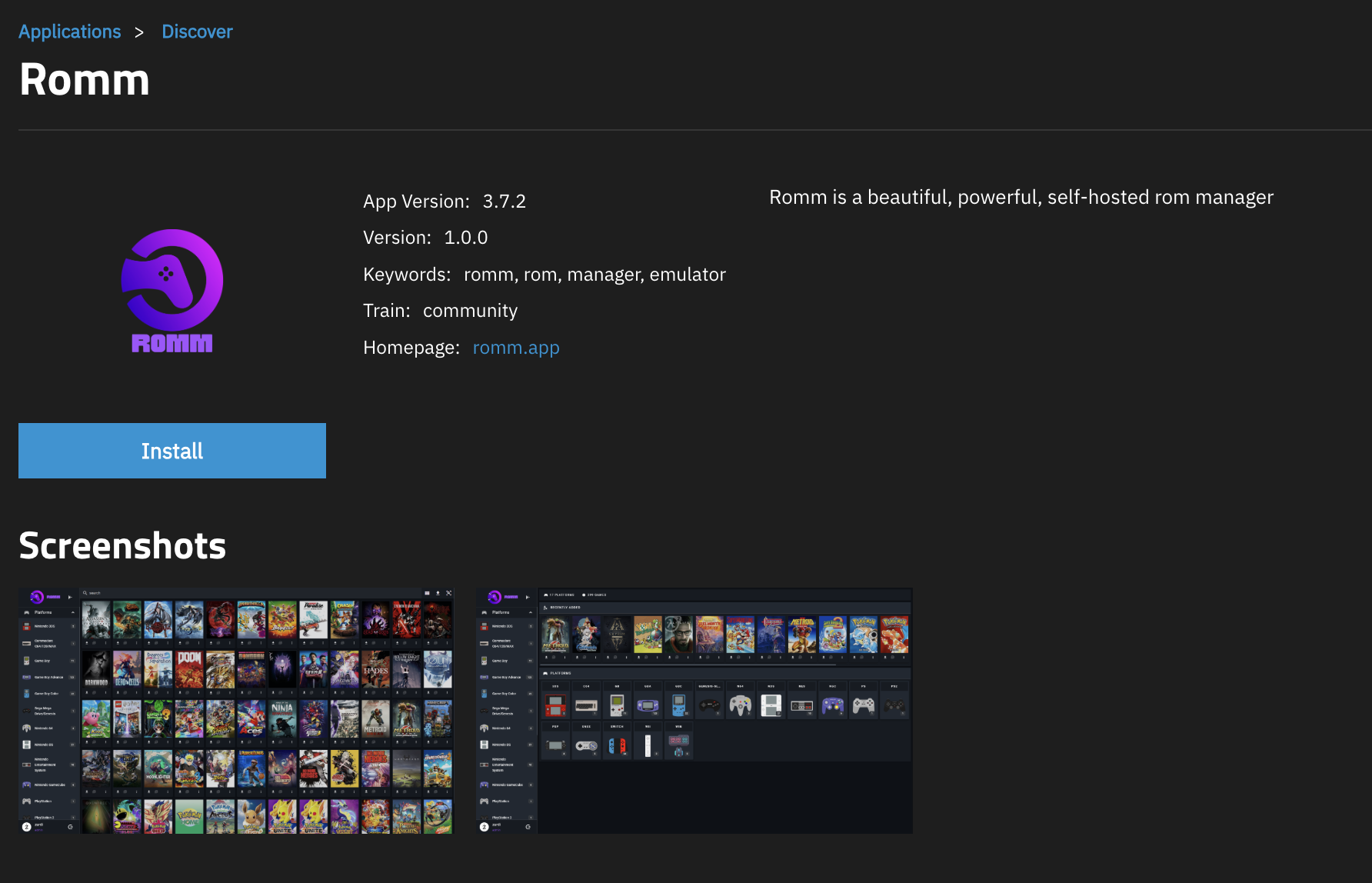
- Fill in the install form
You'll be asked for the same set of env vars as Quick Start, and most defaults work. Things to look at:
- Database credentials: TrueNAS will offer to provision MariaDB for you, just pick a strong password.
ROMM_AUTH_SECRET_KEY: generate viaopenssl rand -hex 32on any Linux box and paste the output.- Metadata provider credentials: fill in whatever you've registered for (see Metadata Providers).
- Storage configurations: point the Library and Assets volumes at datasets you control.
- Make sure the UID/GID defined in the app config (default:
568, theappsuser) has ACL access to those datasets.
- Make sure the UID/GID defined in the app config (default:
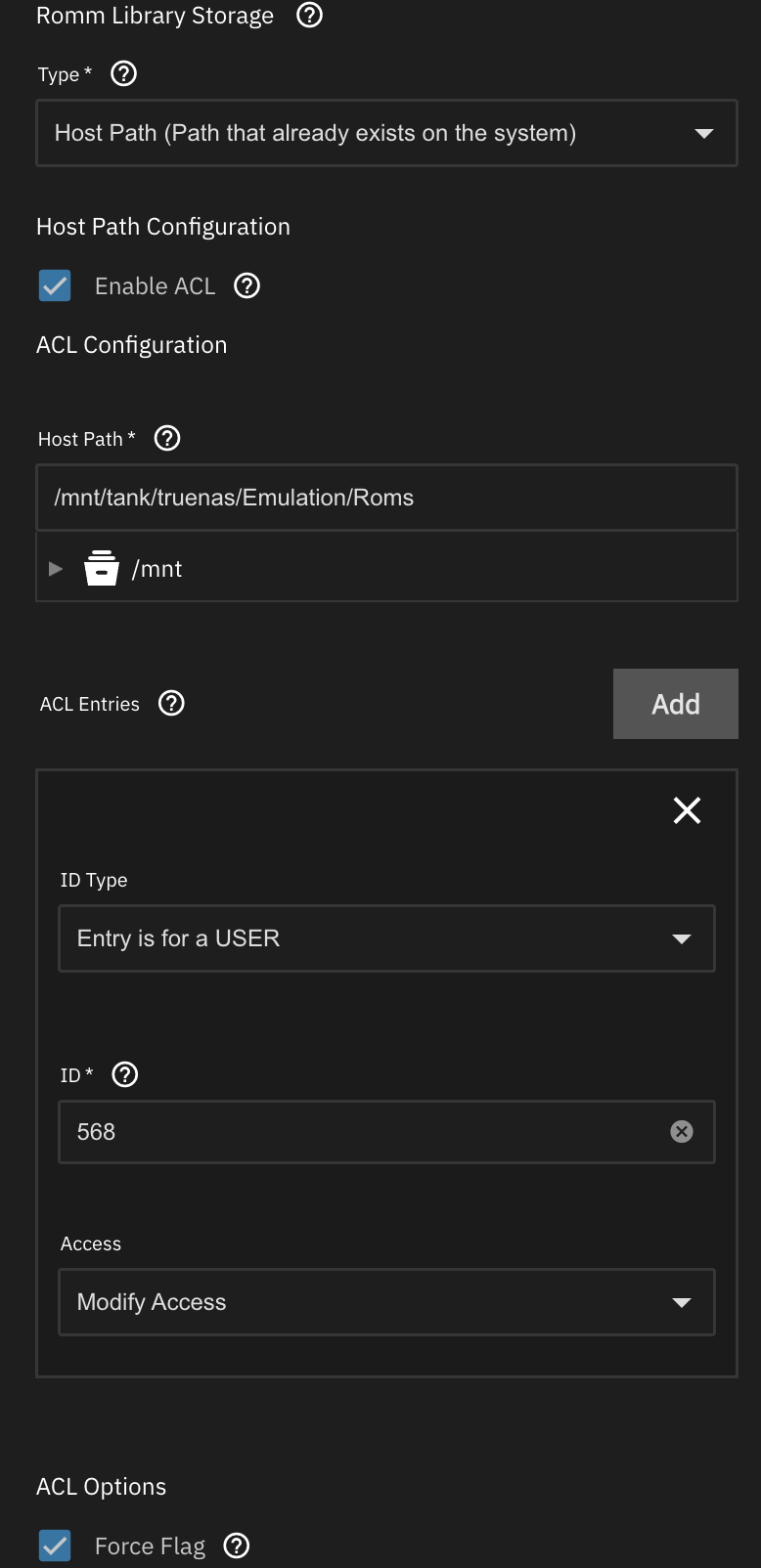
- Install
Save, and TrueNAS will provision the container + DB + Valkey, run migrations, and expose the web UI on the port you configured. If it won't boot, jump to Troubleshooting.
Option B: Install via YAML
Use this path when the App Catalog has a bug, or when you want more flexibility than the install UI exposes.
- Open the YAML install
Apps → Discover Apps → Install via YAML.
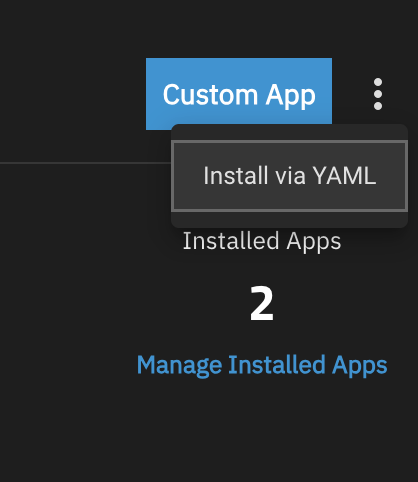
- Paste the compose file
Fill in the empty values with credentials you created in Quick Start.
docker-compose.yml
`yaml version: "3"
volumes:
    mysql_data:
    romm_redis_data:

services:
    romm:
        image: rommapp/romm:latest
        container_name: romm
        restart: unless-stopped
        user: 568:568
        environment:
            - DB_HOST=romm-db
            - DB_NAME=romm # Should match MARIADB_DATABASE in mariadb
            - DB_USER=romm-user # Should match MARIADB_USER in mariadb
            - DB_PASSWD= # Should match MARIADB_PASSWORD in mariadb
            - ROMM_AUTH_SECRET_KEY= # Generate a key with `openssl rand -hex 32`
            - SCREENSCRAPER_USER= # These are the recommended metadata providers
            - SCREENSCRAPER_PASSWORD= # https://docs.romm.app/latest/getting-started/metadata-providers/#screenscraper
            - RETROACHIEVEMENTS_API_KEY= # https://docs.romm.app/latest/getting-started/metadata-providers/#retroachievements
            - STEAMGRIDDB_API_KEY= # https://docs.romm.app/latest/getting-started/metadata-providers/#steamgriddb
            - HASHEOUS_API_ENABLED=true # https://docs.romm.app/latest/getting-started/metadata-providers/#hasheous
        volumes: # Any /mnt paths may optionally be replaced with a docker volume
            - /mnt/tank/truenas/resources:/romm/resources # Replace /mnt...: file path with your own data structure
            - romm_redis_data:/redis-data # Docker will manage this volume
            - /mnt/tank/truenas/roms:/romm/library # Replace /mnt...: file path with your own data structure
            - /mnt/tank/truenas/assets:/romm/assets # Replace /mnt...: file path with your own data structure
            - /mnt/tank/truenas/config:/romm/config # Replace /mnt...: file path with your own data structure
        ports:
            - 31100:8080
        depends_on:
            romm-db:
                condition: service_healthy
                restart: true
        deploy:
            resources:
                limits:
                    cpus: "2.0"
                    memory: 4g

    romm-db:
        image: mariadb:latest
        container_name: romm-db
        restart: unless-stopped
        environment:
            - MARIADB_ROOT_PASSWORD= # Use a unique, secure password
            - MARIADB_DATABASE=romm
            - MARIADB_USER=romm-user
            - MARIADB_PASSWORD=
        volumes:
            - mysql_data:/var/lib/mysql
        healthcheck:
            test: [CMD, healthcheck.sh, --connect, --innodb_initialized]
            start_period: 30s
            start_interval: 10s
            interval: 10s
            timeout: 5s
            retries: 5
`
- Install
Save, and you're done!
Troubleshooting
Generic
- Check you've filled in passwords and any required API keys (and UID/GID, if you're using the App Catalog form).
- Make sure the TrueNAS dataset permissions allow the chosen UID/GID to read/write.
- Watch the app's terminal/logs during startup for clues.
Permission errors inside the container
If you're seeing permission errors on paths inside the container (not on TrueNAS datasets), try temporarily running the container as root (user: 0) to unblock yourself, fix the offending permissions via shell, and switch back to a non-root user. In at least one reported setup, creating a user/group in TrueNAS with UID/GID 1000:1000 and the auxiliary apps group was needed to get the app talking to its embedded Valkey cleanly.
Other issues
- Scanning Troubleshooting for matching/ingest problems
- Authentication Troubleshooting for login issues
- The Discord has a
#truenaschannel with active community troubleshooting.