OIDC with PocketID
PocketID is a minimalist OIDC provider that only supports passkey authentication, with no passwords. Before starting, read the OIDC Setup overview, as it covers the RomM-side settings common to every provider.
1. Prerequisites
PocketID installed, running, and your admin passkey already registered via their PocketID setup guide.
2. Add the client
In PocketID admin:
- Application Configuration: make sure Emails Verified is ticked as we now require verified emails.
- Go to OIDC Client → Add OIDC Client.
- Fill in:
- Name:
RomM - Callback URLs:
https://demo.romm.app/api/oauth/openid
- Name:
- Save. Stay on this page as the client secret only displays once.
- Copy both the Client ID and Client Secret now.
3. Configure RomM
environment:
    - OIDC_ENABLED=true
    - OIDC_PROVIDER=pocket-id
    - OIDC_CLIENT_ID=<from PocketID>
    - OIDC_CLIENT_SECRET=<from PocketID>
    - OIDC_REDIRECT_URI=https://demo.romm.app/api/oauth/openid
    - OIDC_SERVER_APPLICATION_URL=https://id.example.com
    - ROMM_BASE_URL=https://demo.romm.app
OIDC_SERVER_APPLICATION_URL is the root URL of your PocketID instance.
4. Set your email
RomM → Profile → set your email to exactly the same address PocketID has for you.
5. Test
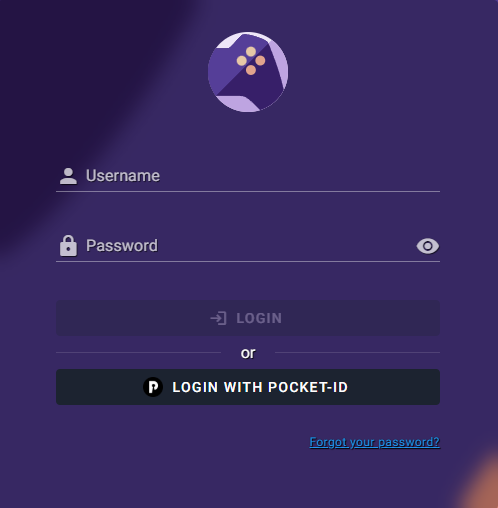
Restart, navigate to /login and click the Login with OIDC button. You're redirected to PocketID → authenticate → bounced back and signed in!
If it doesn't work, head to Authentication Troubleshooting.