ZimaOS
ZimaOS ships RomM in its App Store, so the install is a single click and no compose file or database setup is needed.
Prerequisites
- A running ZimaOS installation
- Your library arranged in the expected folder structure
Install
Open the App Store and search for RomM, then hit Install.
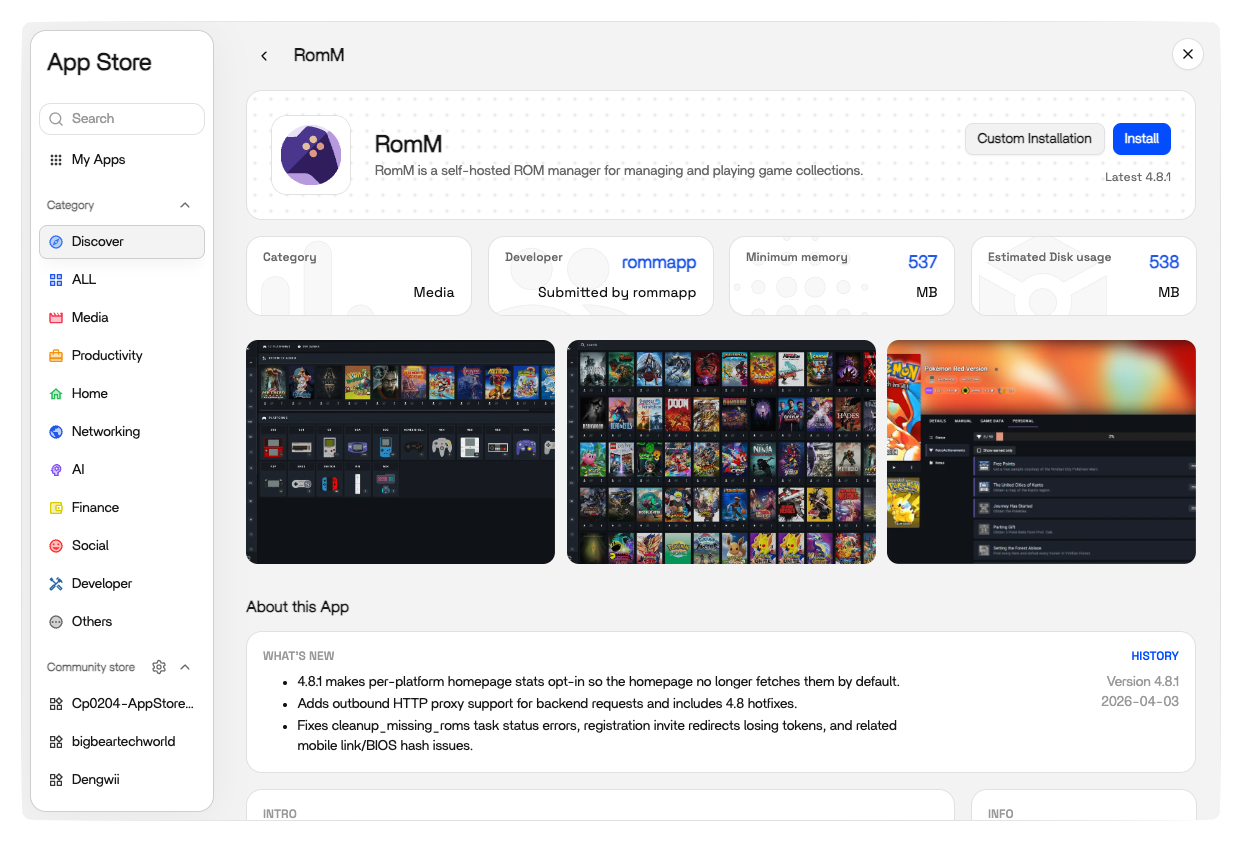
ZimaOS provisions the container along with its database and Valkey, and the app shows up on your home screen when it's ready.
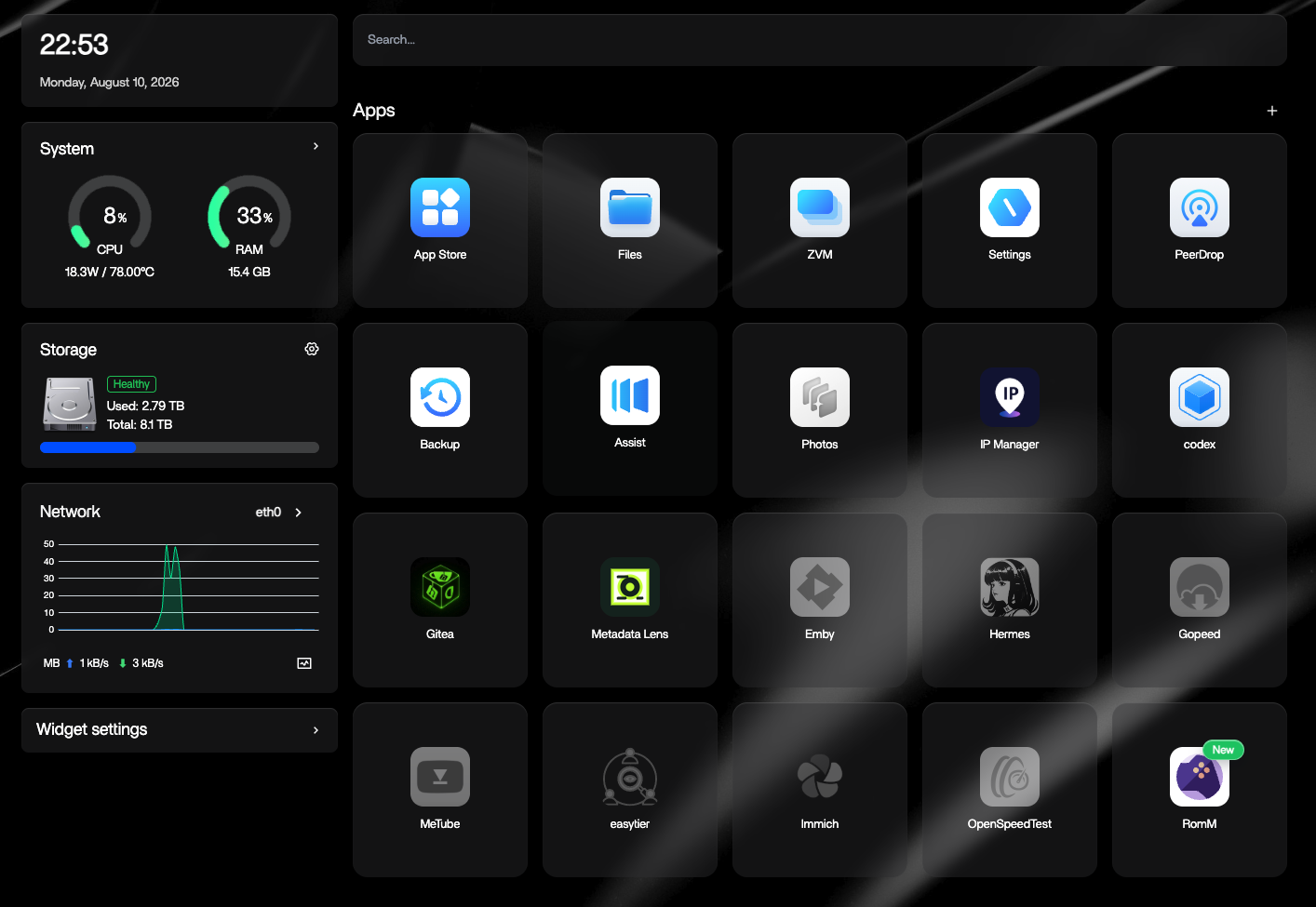
Open it and the first-run Setup Wizard walks you through creating the first admin account.
Configuration
The defaults work out of the box, so everything below is optional.
To change container settings, use the options button in the upper-right corner of the app tile. ZimaOS offers both a form-based editor and a YAML editor for the underlying compose file, so you can set volumes, ports, and env vars either way.
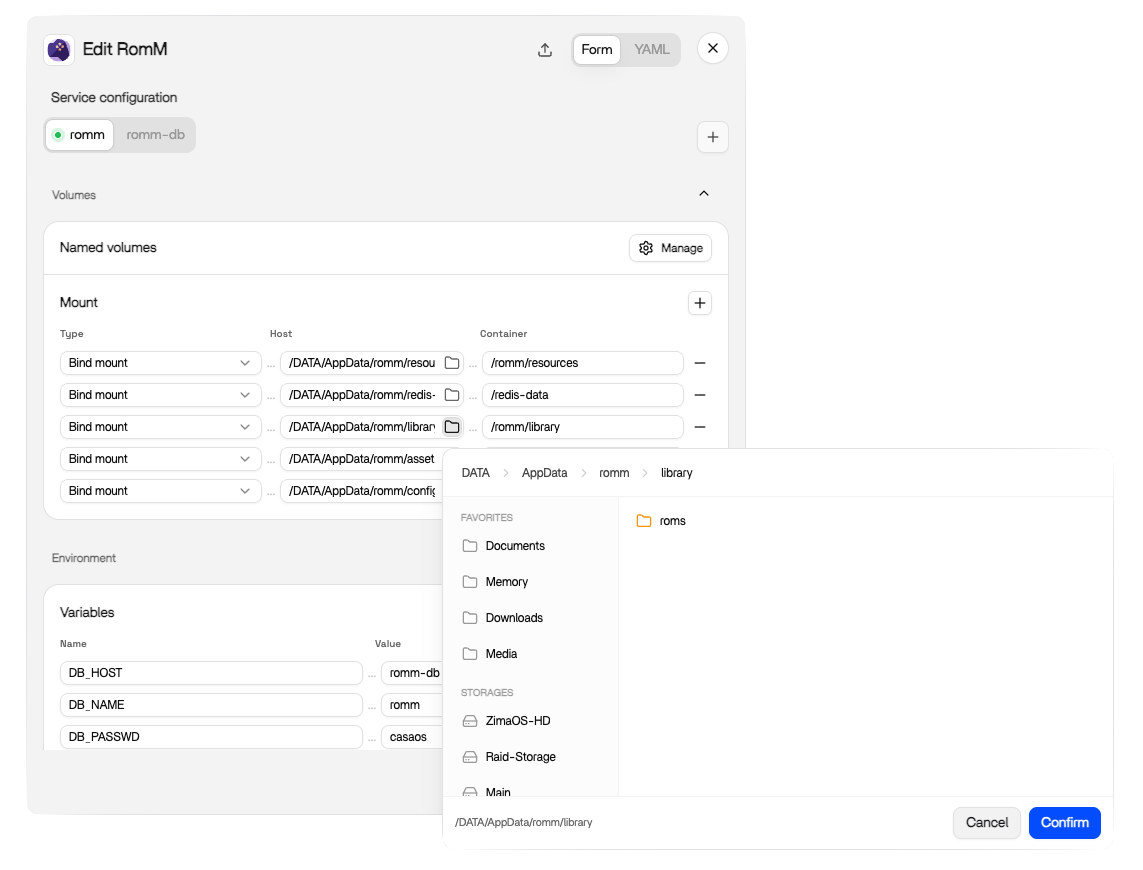
The env vars are the same ones documented in Quick Start and the Environment Variables reference. Two worth setting early:
ROMM_AUTH_SECRET_KEY: generate one withopenssl rand -hex 32. Rotating it later invalidates every session and invite link.- Metadata provider credentials: fill these in before your first scan (see Metadata Providers).
Adding ROMs
Open Files in ZimaOS, navigate to the directory you mapped to the library (AppData/romm/library/roms by default), and drag your files in to upload. Platform folder names inside roms/ have to match the expected naming (see Folder Structure).
Once the files land, run a scan from the app (see Your First Scan).
Getting help
For ZimaOS-specific problems, the ZimaSpace Discord is the fastest route, since their team and community maintain the App Store entry. For issues with the app itself, try the RomM Discord or:
- Scanning Troubleshooting for matching and ingest problems
- Authentication Troubleshooting for login issues