Hostinger
Hostinger ships RomM as a one-click application in its VPS catalog, so a fresh server comes up with the container, its database, and a reverse proxy already wired together. Hostinger builds and maintains the template, and the app itself is the same rommapp/romm image documented everywhere else in these docs.

Supporting RomM
The button above is an affiliate link, and signups through it send a share of the revenue back to the project.
What it deploys
The template creates two Docker applications on the VPS:
romm-<suffix>: two containers, the RomM app and a MariaDB database. There is no third container for the in-memory store, since the template leavesREDIS_HOSTunset and the image starts its embedded Valkey.traefik: one container, acting as the reverse proxy.
Resources, assets, and config live in named Docker volumes, while the library is a bind mount from a directory on the VPS, which is where you'll upload ROMs.
Prerequisites
- A Hostinger VPS plan. The catalog offers the app on every tier down to the entry-level KVM 1, though your library shares the server's disk, so pick a plan whose storage fits your collection.
Install
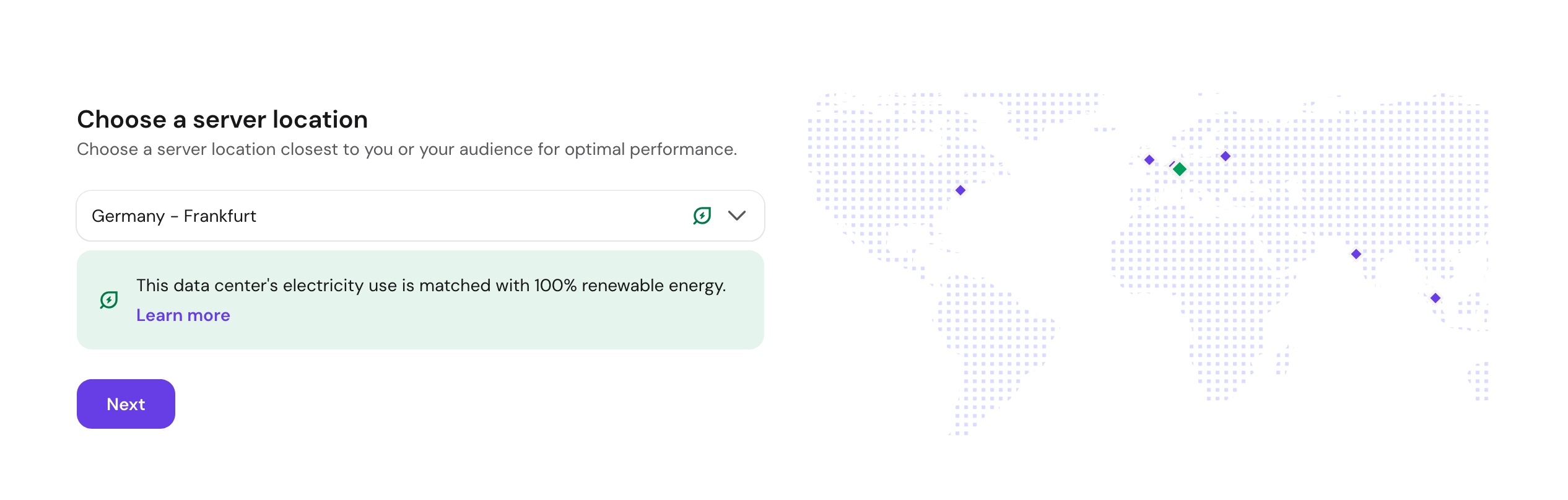
Start a new VPS order and pick a server location close to you.
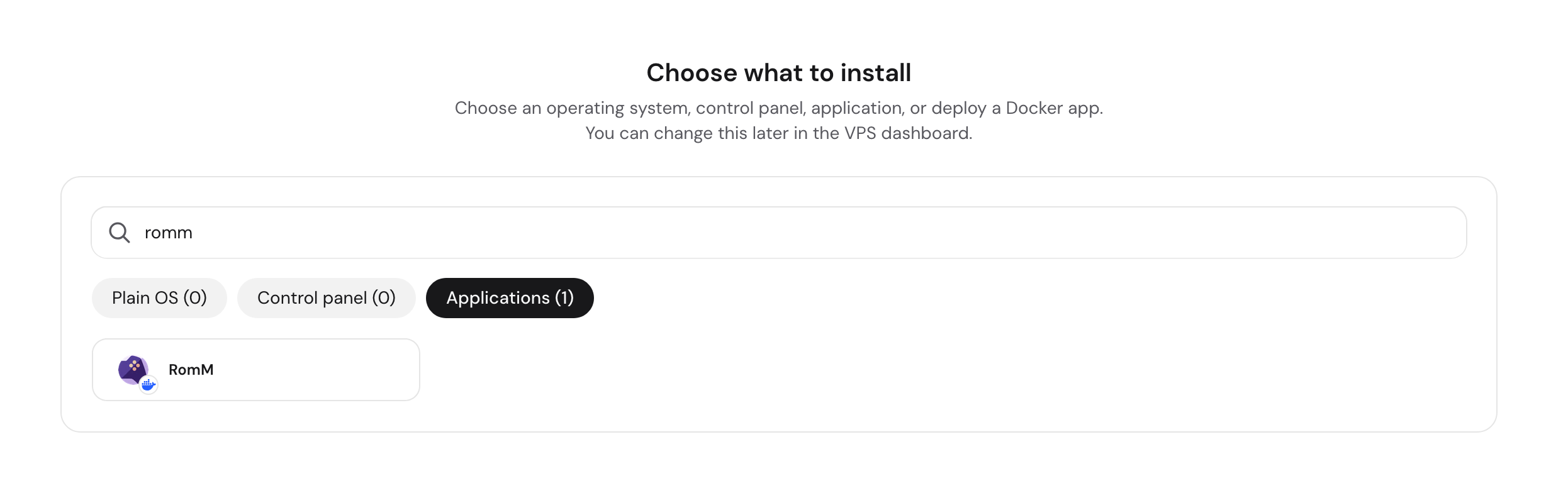
On the Choose what to install step, search for romm and pick it from the Applications tab.
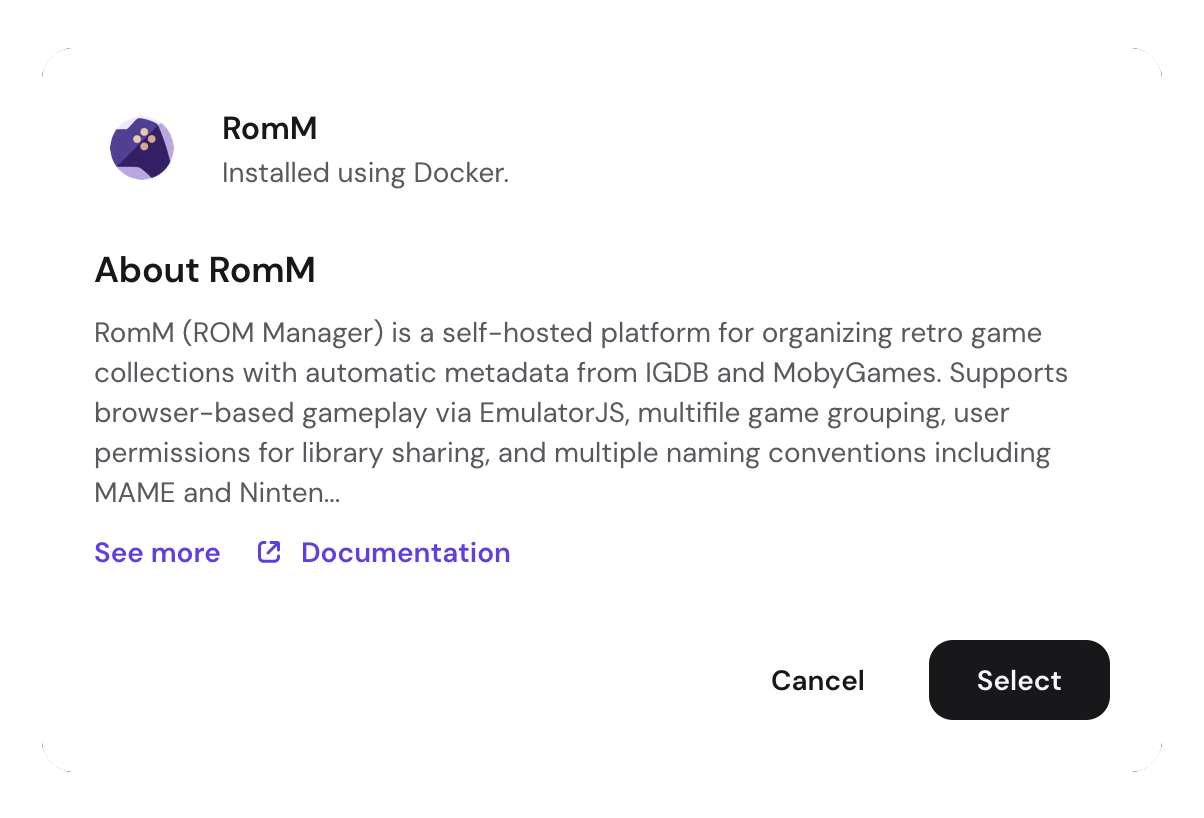
Confirm the app card with Select.
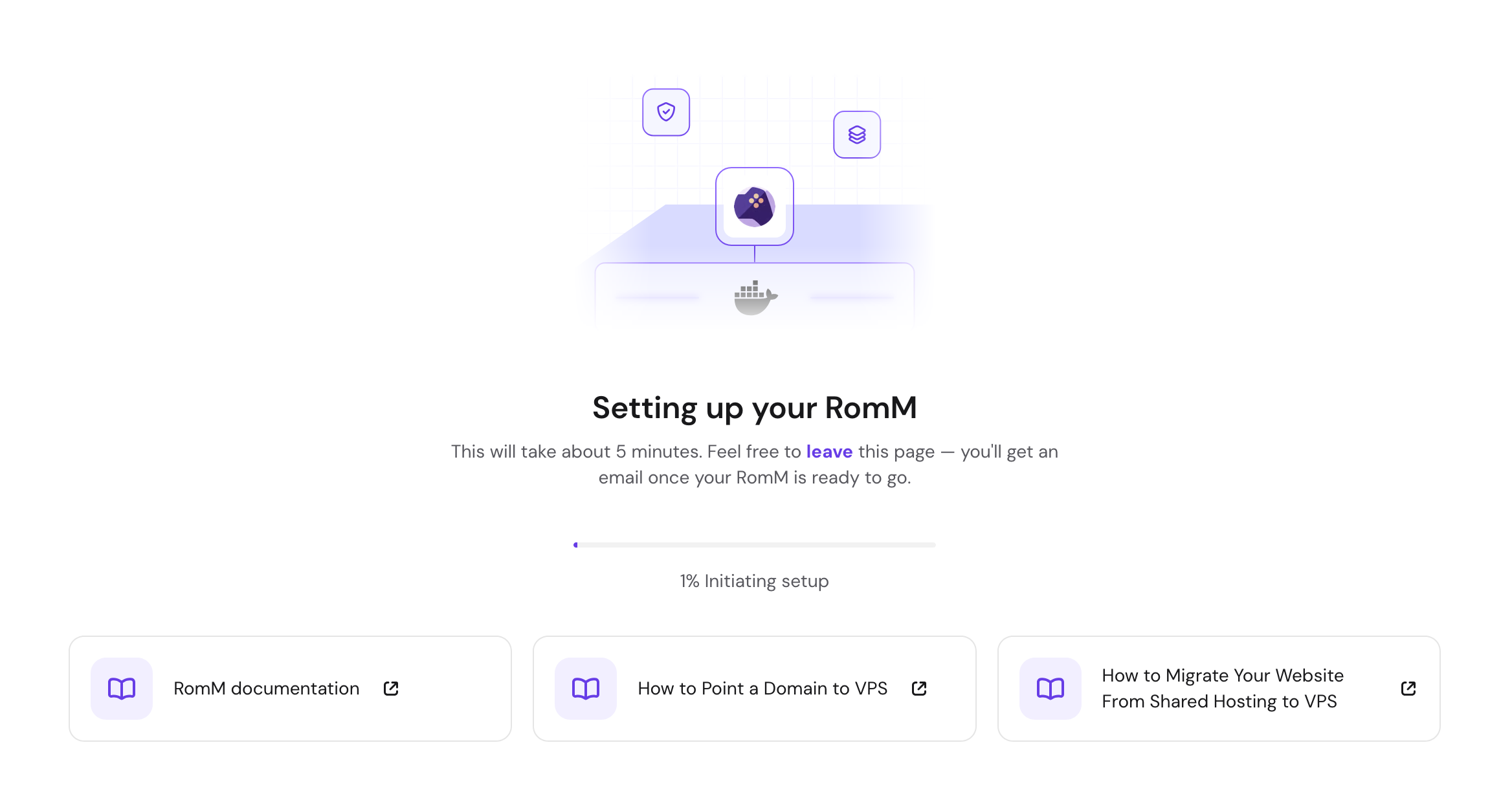
Hostinger then provisions the server and brings the stack up, which takes about five minutes. You can close the page, since an email arrives when it's ready.
When it finishes, the VPS Overview lists RomM under My applications with an Open app button.
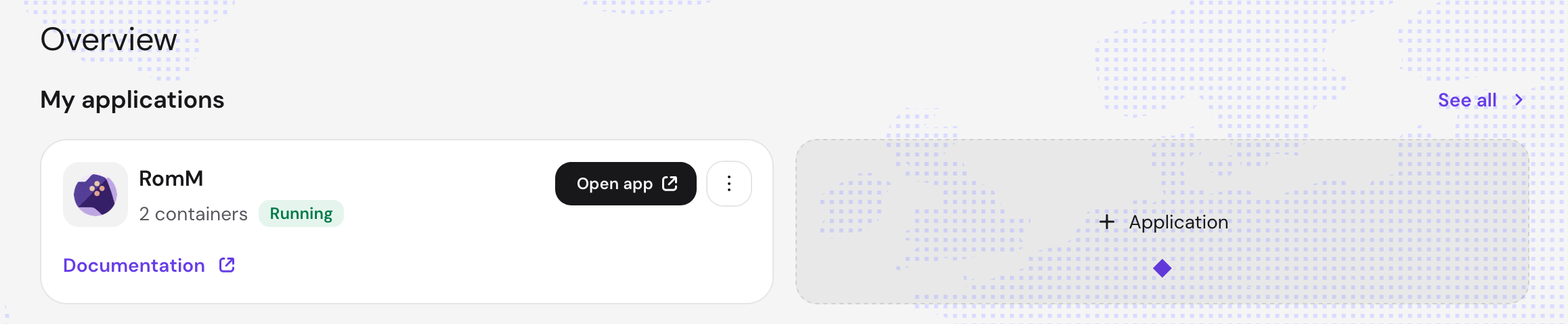
Open it and the first-run Setup Wizard walks you through creating the first admin account.
Managing the stack
Docker Manager → Applications lists both stacks with their status, a terminal, and a Manage button for each.
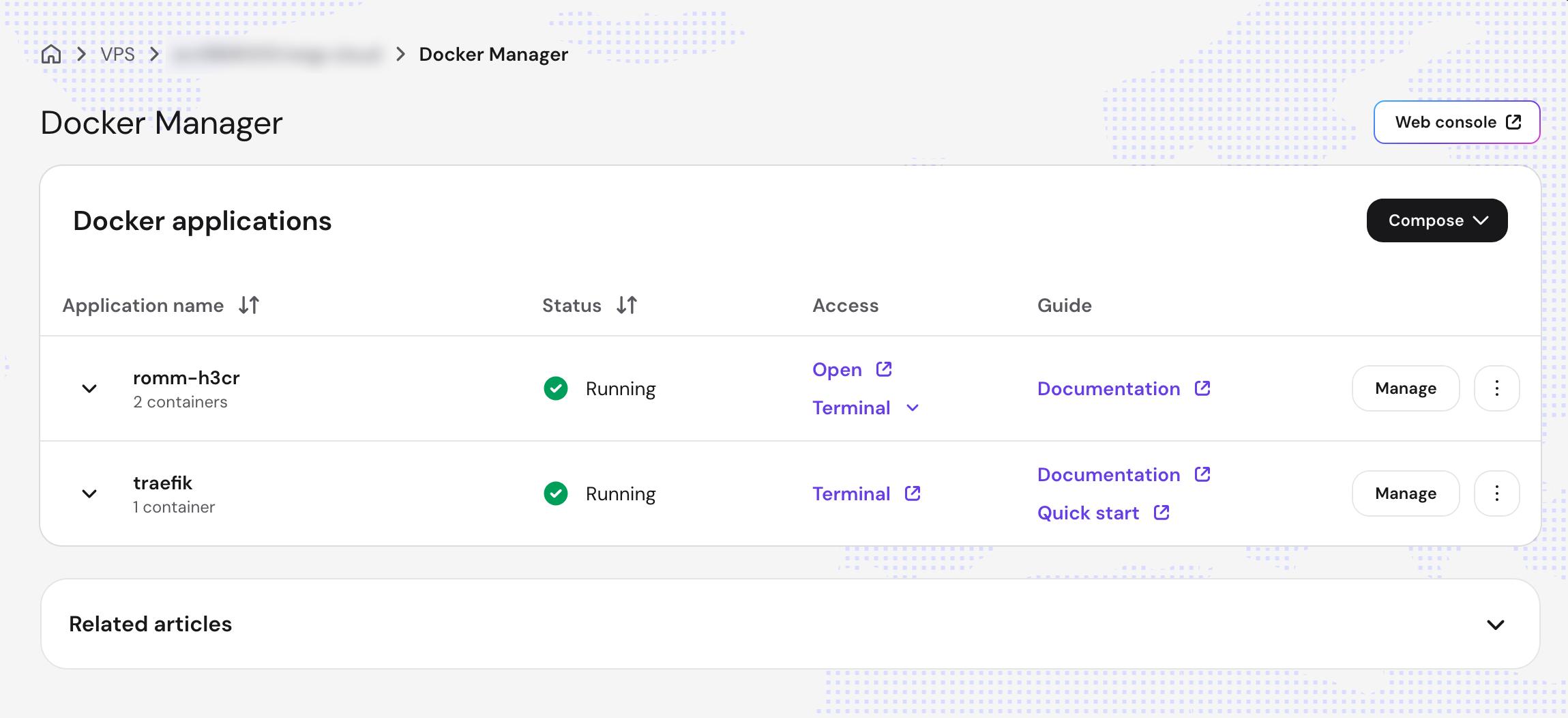
Manage on the RomM application is where you'll do everything after install, including editing environment variables, editing the compose file, viewing logs, and restarting or updating the containers.
Configuration
The Environment section holds the values the template interpolates into the compose file, and Save and deploy applies a change by recreating the containers.
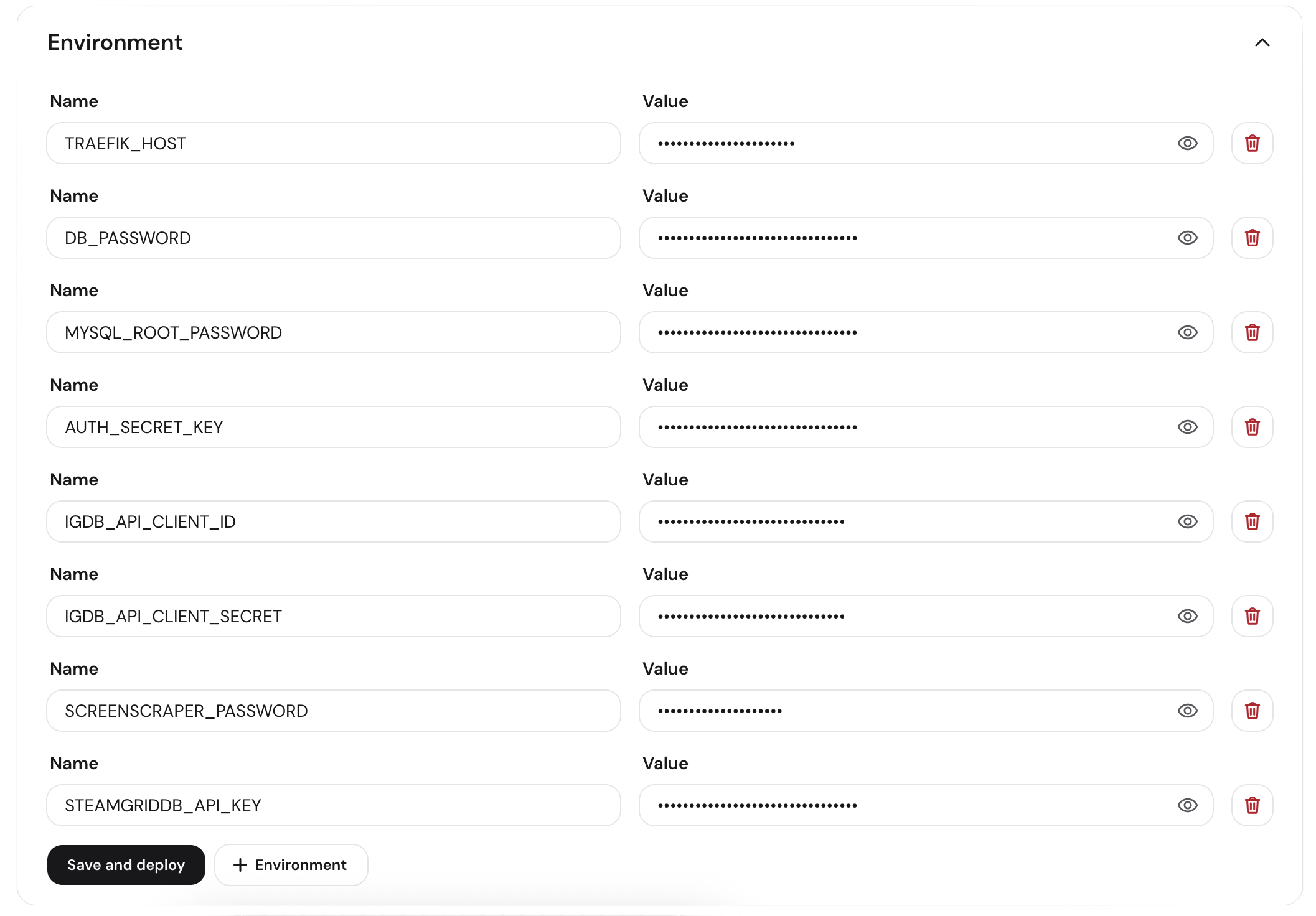
Fill in the metadata provider credentials before your first scan, since matching quality depends on them (see Metadata Providers).
Names have to match the compose file
Each entry here is referenced from the compose file as ${NAME}. If you rename a variable in the Environment section without renaming its reference, the container starts with that value empty rather than failing loudly.
The full compose file is editable under .yaml editor, which is the place to add volumes, change the image tag, or set env vars the template doesn't expose.
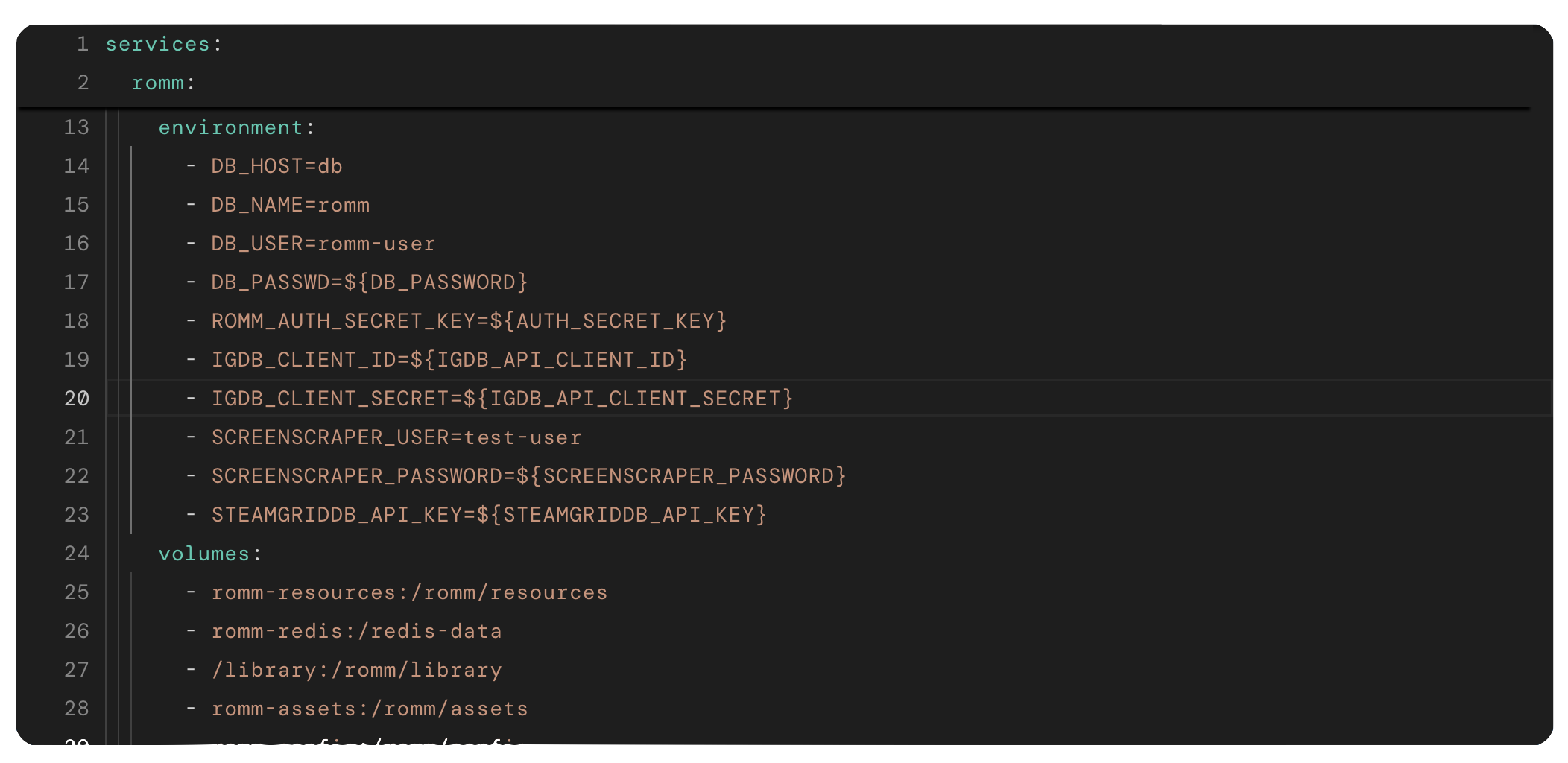
Everything in it is the standard configuration described in Quick Start and the Environment Variables reference.
Adding ROMs
The library can live anywhere on the VPS disk, as long as the host directory is bind-mounted to /romm/library inside the container. The template mounts /library, and you can point it somewhere else by editing that line in the .yaml editor. Copy files to the host path over SFTP or SSH using the server's IP and the root credentials from the VPS overview:
Platform folder names inside roms/ have to match the expected naming (see Folder Structure). Once the files land, run a scan (see Your First Scan).
Getting help
For problems with the VPS, the template, or Docker Manager, contact Hostinger support, since they maintain the catalog entry. For issues with the app itself, try the RomM Discord or:
- Scanning Troubleshooting for matching and ingest problems
- Authentication Troubleshooting for login issues